How to check for invoice duplication in Sage 300 using Access

How to check for invoice duplication in Sage 300 using Access

Overview

Log into the server Sage 300 is installed

Verify the ODBC Setup for the Sage 300 instance

Open ODBC Data Source Administration (32-bit) from the Windows Search by typing in odbc. Once open go to the System DSN tab. It will look like the below image.


Open the Data source you think is attached to the specific Sage 300 company  to verify the source path. It will have a driver called Timberline Data. It will look like the below image when opened.


When you have the proper Data source setup or connected you will want to open Access to verify the Sage 300 Data has a duplicate.

Open Access and create a new Blank Database to query Sage 300

Open the Access app on the Sage 300 server. Create a new Blank database. It will look like the below image.


Once opened name your new DB file and click create. It will look like the below image.


Once your new Access DB is open, close the table it opens by default by right clicking on the tables tab and selecting Close from the dropdown. It will look like the below image.

Once the tab is closed click on the External Data Tab and select the NewDataSource button. Click on the From Other Sources and then ODBC Database from the options. It will look like the below image.


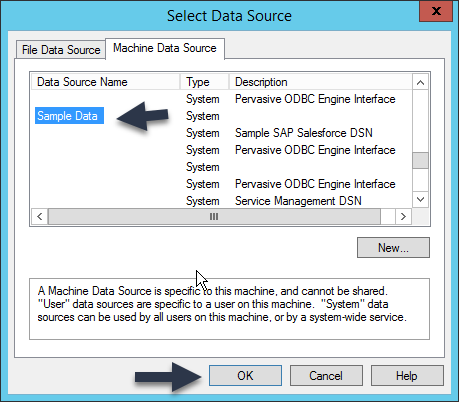
Another prompt will appear asking you to Select Data Source, you will select the Machine Data Source Tab and then scroll to the ODBC you located earlier and select it then click the OK button. It will look like the below image.


You will then be prompted to enter the Sage 300 login to access the data. Enter your login info and click the OK button. It will look like the below image.


Once logged in you will see a list of tables to select from to inspect the data. You will select MASTER_GLM_ACCOUNT from the list and click the OK button.


Now that the table is selected close all open tabs and then go the the Access Create tab and then select Query Design from the menu. It will look like the below image.


When Query Design opens click the Add button in the Show Table Pop-up and click close then select the account table in the query box to select the Account table. Select the SQL View button on the top left and select the SQL View from the drop down. It will look like the below image.


When Query1 appears enter the following SQL Statement replacing the Invoice ID in question with the current demo account ID. SELECT * FROM GLM_MASTER_ACCOUNT WHERE Account LIKE '10-6015'. After Pasting this in and editing the Account ID to match the one suspected of duplication in your account you would click the Pass-Through Button and then the Run button. It will look like the below image.


Once you click run you will likely be prompted to choose the ODBC again, it will look like the below 2 images.


This will now display all the Invoices that match the number you queried for. It will look like the below image.


If you need help getting the query to run, please contact support@anterratech.com 

    • Related Articles

    • AP/AR Invoice Image Upload Service Install and Prerequisites

      Overview The Anterra Signed Upload Sync Service is a Windows Service that runs on a server in your environment with access to the locations on your internal network which contain PDF or TIF/TIFF images for AP and/or AR invoices. The service supports ...
    • Set up SQL Data connections for Sage Crystal Reports

      Overview Sage 300 CRE uses Crystal Reports to generate formatted reports. To connect Crystal Reports, and thus the Sage report designs to your data which ADC has extracted into SQL Server, you will need to: Create a 32-bit ODBC connection called a ...
    • Sage 300 CRE Upgrade Guide for anterraDataCenter

      Background Upgrading Sage 300 CRE to V17 or V18 can interrupt ADC syncs and disable your Windows Server Scheduled Tasks. We have prepared this guide to assist you in upgrading anterraDataCenter and preventing sync and scheduled task outages. Please ...
    • Invoice Sync: Setup Sage Paperless

      Once you have Invoice Sync installed, use the following steps to complete setup. Configuring Sage Paperless Clicking the Config menu (shown below) then choosing Setup Sage Paperless will bring up the Config Sage Paperless window. In this window, you ...
    • Invoice Sync: Setup Sage Paperless

      Once you have Invoice Sync installed, use the following steps to complete setup. Configuring Sage Paperless Clicking the Config menu (shown below) then choosing Setup Sage Paperless will bring up the Config Sage Paperless window. In the window below, ...